
How to use TotoPoker 3
TotoPoker 3 is real-time Scrum Poker for your team. Estimate user stories together, keep votes hidden until everyone is ready, and reveal the results to kick off the discussion.
 A guide for better conversations
Create a room
From the home page, click Create a room. You'll get a room with a unique, unguessable link. Share that URL with your teammates — there's no sign-up and no account needed.

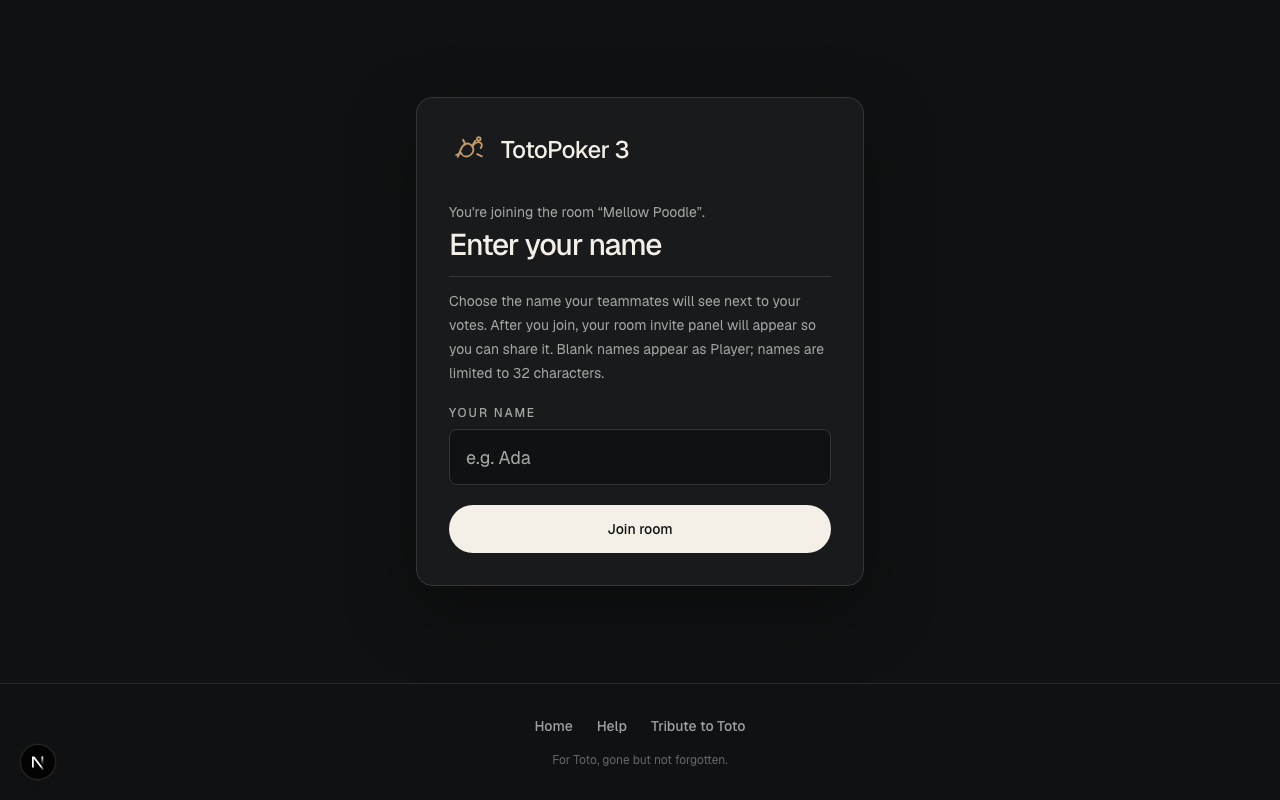
Join with your name
When you open a room link, enter your name to join. Your name is used in the live room session; it isn't saved as an account or persistent profile. Duplicate names receive a numeric suffix, such as (2), so everyone can tell players apart.
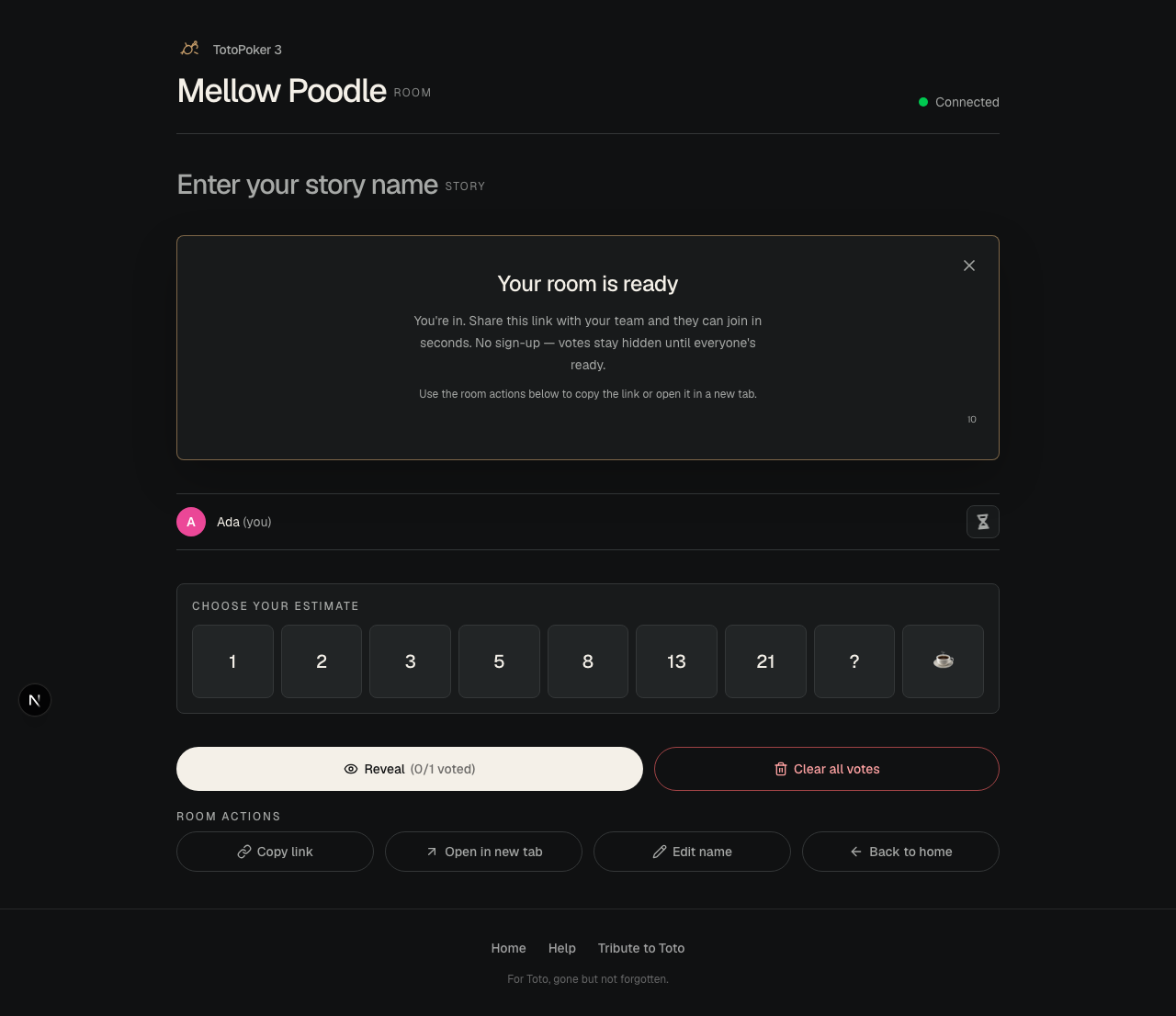
Share the ready room
After you join a fresh room, the Your room is ready panel points you to the sharing actions. Use Copy link to share the room or Open in new tab to open the same room again. The panel closes automatically after 10 seconds, or you can dismiss it yourself.
Name the room and story
The generated room name appears at the top of the room. Click it to rename it; room-name changes are shared with everyone. Click the story title to edit the story the team is estimating. Both edits sync live across the room.
Vote on a story
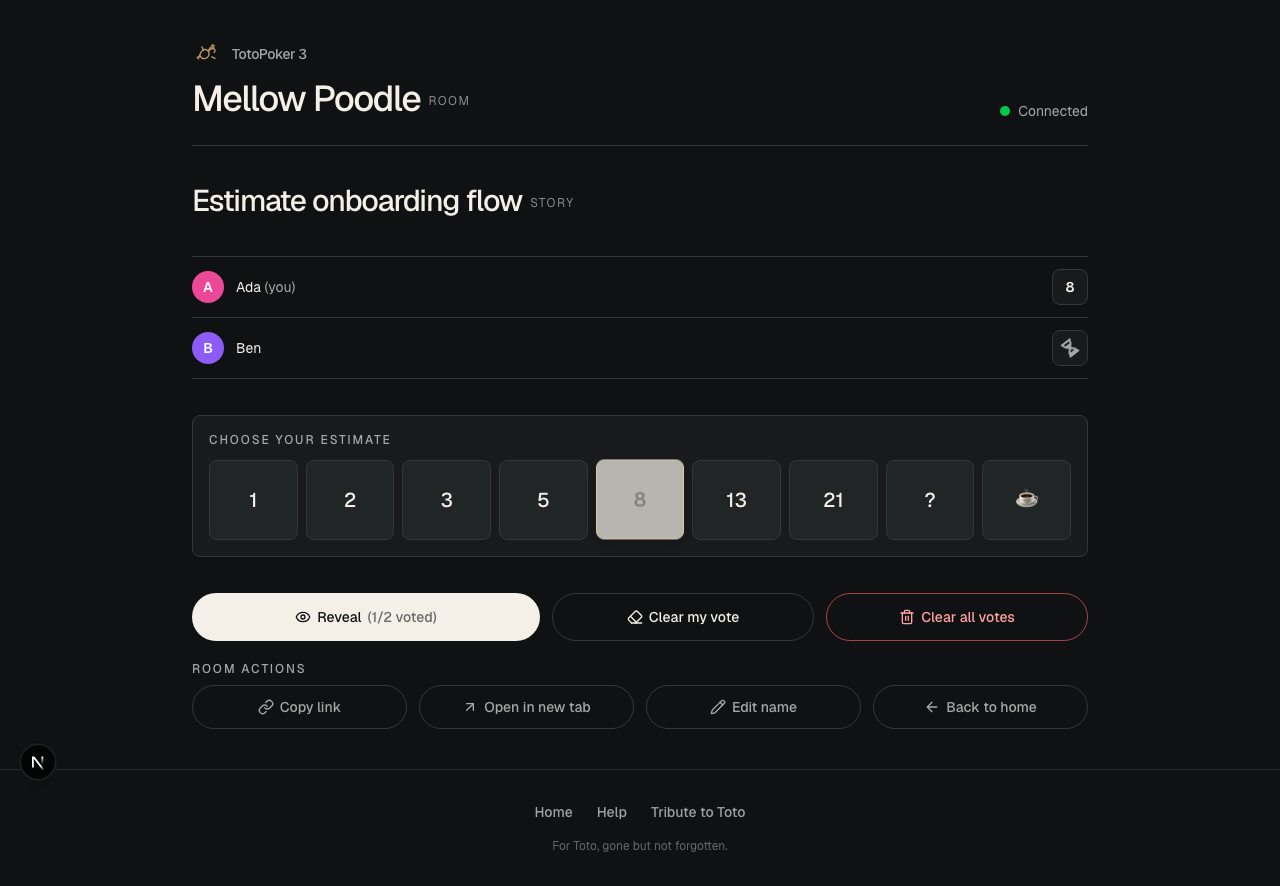
Everyone estimates the current story using a Fibonacci deck: 1, 2, 3, 5, 8, 13 and 21. Two extra cards cover everything else:
?— you can't estimate it (needs more detail).☕— time for a coffee break.
Tap a card to select it, or tap it again to clear your vote. While voting, Clear my vote removes only your vote, while Clear all votes removes every player's vote. The deck is locked after the reveal and becomes available again when you start a new round.
Reveal and discuss
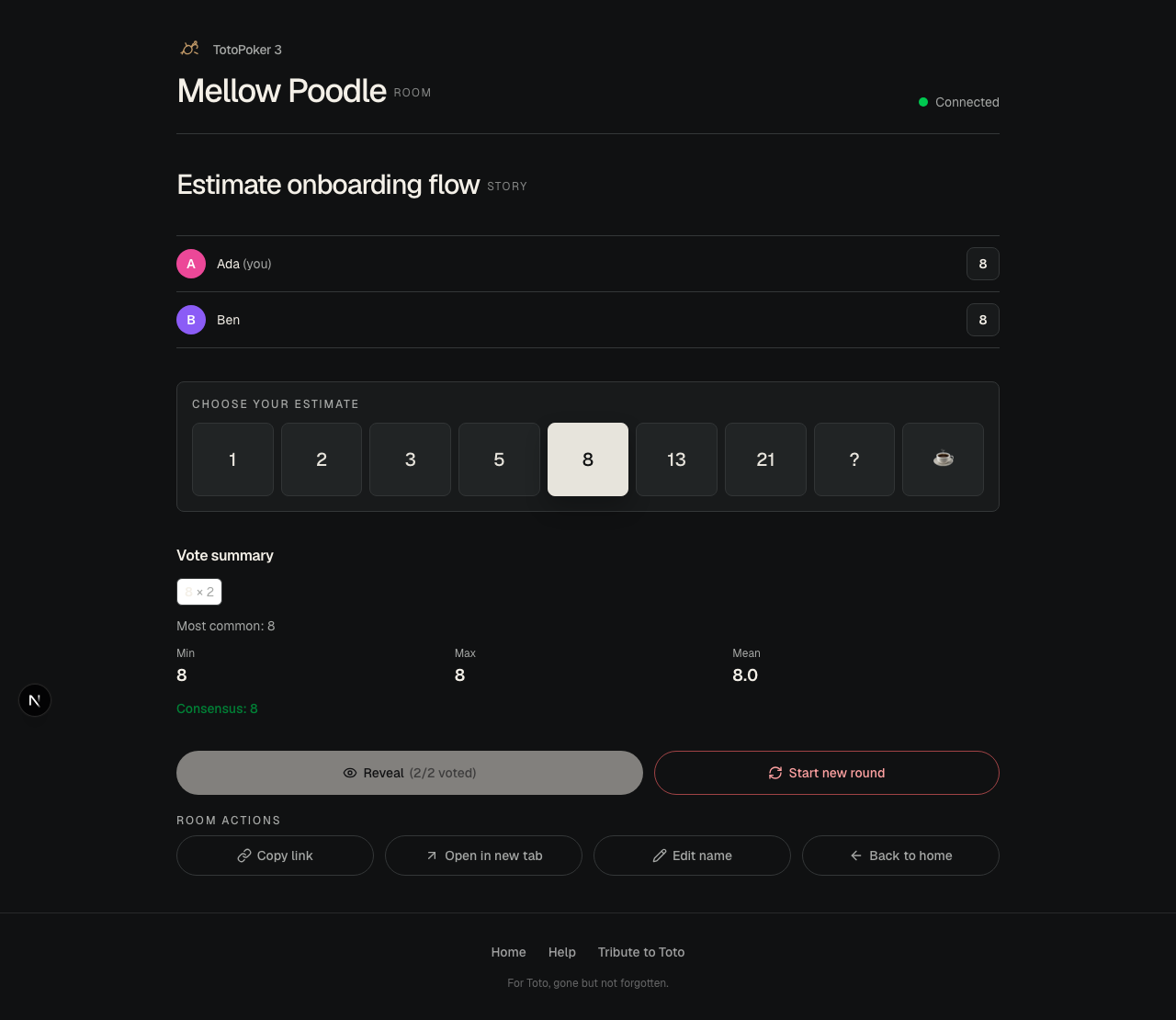
Click Reveal when the team is ready. The room shows every submitted vote and a summary with the count of each value, the minimum, maximum, average, and most common vote. A green Consensus badge appears when all submitted votes are the same numeric value.
The ? and ☕ cards are included in the vote counts, but excluded from the minimum, maximum, and average because they aren't numbers.
Start a new round
After the discussion, click Start new round to clear all votes, return to voting, and unlock the deck. The current story stays in place until someone edits it. Use Copy link to share the room, Open in new tab to open it again, and Back to home to leave the room.
Connection status
The indicator in the top-right of a room shows your connection state:
- Connecting… (amber) — the room is opening.
- Connected (green) — live sync is active.
- Offline · Reconnect (red) — you've lost the connection and aren't syncing. The app retries automatically, and you can press the indicator to retry immediately. The room restores its latest synced state after reconnecting.